

Made for digital product sellers
Design and sell
fillable PDFs.
Start from a template, generate a page with AI, or upload your own art. Add real fillable fields, then export a polished PDF you can list on Etsy, Gumroad, KDP, or Teachers Pay Teachers.

Four ways to start
-

Create with AI
Describe the page you need and get a real layout with fillable fields in seconds.
Start creating -
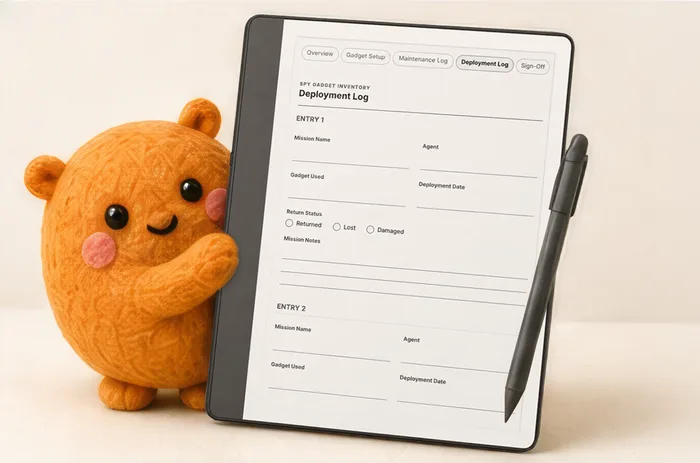
Build a Planner
Answer a few questions and get a dated planner built to match, ready to restyle.
Set up your planner -

Template Library
Start from 550 ready-made planners, journals, trackers, and forms.
See what's inside -
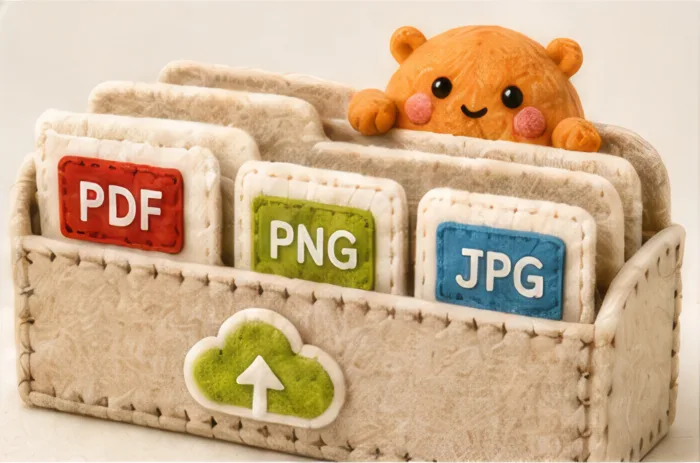
Upload a File
Bring your own PDF, PNG, or JPG and add fillable fields your buyers can type into.
Make it fillable
Made to sell
Make something you're proud to sell.
Every export leaves the editor as a polished, finished product, ready to list under your own brand.
- Sell on Etsy, Gumroad, Teachers Pay Teachers, KDP, or your own store.
- Keep 100% of every sale, with no royalties and no fees.
- Export book interiors with real KDP trim sizes and bleed.
- Use your files for client work and your own business too.


Why fillable PDFs?
Make it once. Sell it again and again.
A fillable PDF is a page your buyer can type into: a budget with working numbers, a planner with boxes to tick, an intake form their own clients can complete. That usefulness is what turns a nice-looking page into a digital product.
-

Pages that really work
You design pages with fields that type, boxes that tick, and links that jump, and they work in any PDF reader your buyer opens.
-

Buyers search for "fillable"
Interactive planners, dated planners, and fillable forms top the charts on Etsy, Teachers Pay Teachers, and Gumroad. Shoppers filter for the word because a file they can type into beats one they can only print.
-

Most sellers build them by hand
The planners at the top of those charts are mostly assembled link by link in PowerPoint or Keynote. Tangent handles the links, fields, and dated pages natively, so your time goes into the design.
The library
A starting point for almost anything.
The library holds 550 single-page templates across 30 categories, plus 117 multi-page kits and binders. Open one, restyle it to match your brand, and export a file that is ready to list.
- Planners
- ADHD & Focus
- Wellness
- Therapy & Counseling
- Self-Discovery
- Relationships
- Career
- Decisions
- Fitness
- Health
- Money
- Business
- Forms
- Job Search
- Legal
- Official Tax Forms (US)
- Family
- Education
- Teachers
- Home
- Pets
- Life
- Creative
- Events
- Travel
- Faith
- Gaming
- Sports & Betting
- Magick
- Notebook
Multi-page kits and binders
- Wedding Master Binder
- Small Business Starter
- Teacher Planner Kit
- Travel Trip Kit
- Estate Planning Binder
- Homeschool Binder
- Etsy Seller Binder
- Nursing Report Bundle


Fillable by default
Real form fields that work in any reader.
Tangent builds genuine AcroForm fields, not flat pictures of inputs. Your customers can type, tick, and choose right inside the PDF in Acrobat, Preview, or a browser. Canva and most design tools cannot make these fields at all, which is why buyers ask for them by name.
- Text fields for names, dates, notes, and journaling.
- Checkboxes for habit trackers and to-do lists.
- Grouped radio buttons for pick-one questions like mood, energy, and star ratings.
- Dropdown menus when readers should choose from a structured list.
- Date fields with formatting so entries stay consistent.
- Calculator fields that sum, multiply, or average other fields automatically.
- Document-wide styling so every field looks intentional.
In action
Watch the highlights at work.
Every clip is a real screen capture from the editor. Click any clip in the playlist to watch how each tool works.
Now playing
Clickable links
Draw a clickable area anywhere on a page and link it to another page in the document or to any website on the internet.
Create with AI
Describe it, and watch it take shape.
Tell Tangent what you need. A client intake form, a themed planner page, or a whole multi-page kit. The built-in AI drafts a real layout with editable fields and a design you can keep refining in the editor.
When you need more pages later, Extend builds matching pages in the same style. Every new account includes AI credits, so you can see what it makes before spending anything extra.


Already have images?
Bring your own from any image model.
Image models from OpenAI, Google, and others can generate detailed pages with real typography, from planner spreads to worksheets. They arrive as a folder of PNGs. Drop that stack into Tangent, set the page order, add links and fillable fields, and export one finished interactive PDF.
Built for any device
One project, three ways to export.
The same document can ship as a type-in form, a grayscale e-ink file, or a designed write-on page. Pick the target at export and Tangent prepares the rest.
-

Fillable PDF
Type-in fields that work in any PDF reader, on desktop, tablet, or phone.
Acrobat · Preview · browsers
-

E-ink
Grayscale pages with working links, sized for low-power screens.
reMarkable · Kindle Scribe · Boox
-
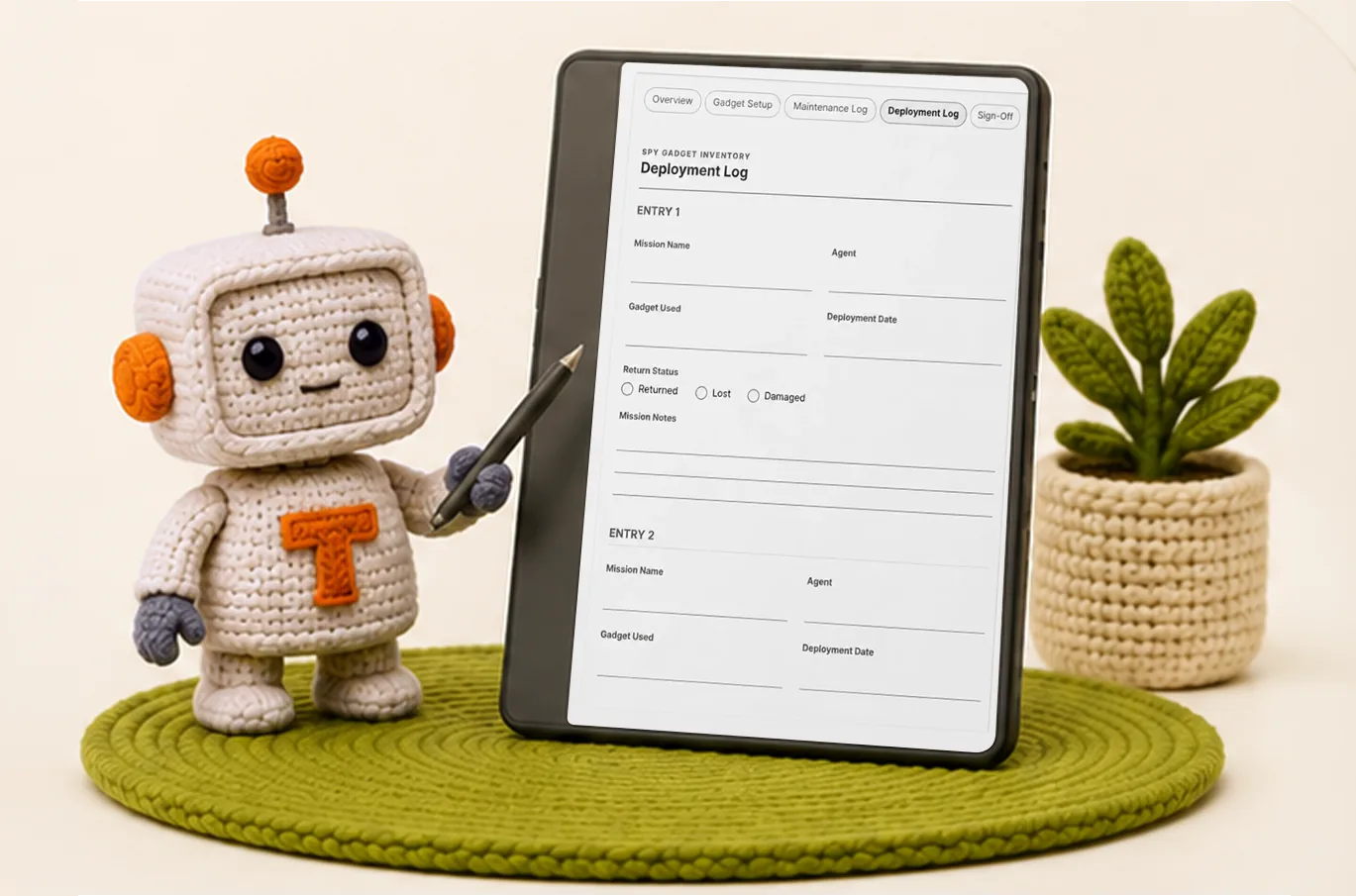
Write-on
Designed pages with links, made for handwriting apps.
GoodNotes · Notability
And more
Everything else the editor does.
-

Mail merge from a spreadsheet
Paste a spreadsheet and generate up to 100 finished pages in one pass, one page per record, exported together as a single PDF.
-

Make it clickable
Draw links anywhere, point them at a page or a URL, and let Tangent build a clickable table of contents from your text.
-

Themes and styling
Reskin a whole document in one click, pull from theme packs, and drop in stickers and recolorable motifs.
-

Headers and footers
Build a header or footer once and repeat it on every page, with navigation links or plain text like titles and page numbers.
-

Manage your pages
Mix PDFs and images, drag to reorder, and duplicate a sequence to turn one weekly spread into a full 52-week planner.
-

Layer your design
Place images, text, and shapes anywhere, sketch with the freehand tool, and use find and replace to keep colors and fonts consistent.
Sell it anywhere
List your finished PDFs on the marketplaces digital sellers already use.
- Etsy
- Teachers Pay Teachers
- Gumroad
- Payhip
- Amazon KDP
- Your own store
Also included
Not sure what to make first?
The built-in Research hub collects top sellers from Etsy, Teachers Pay Teachers, and Gumroad: what they charge, how they describe it, and which niches keep coming up. Browse it when you need a direction, then build your own take in the editor.
It is a reference library, not homework. Skip it entirely and start from a template if you already know what you want to make.

Pricing
One price. Everything included.
- The full in-browser editor
- All 550 templates and 117 multi-page kits
- The guided Dated Planner
- Create with AI, with credits to start
- Themes, stickers, and motifs
- Fillable, e-ink, and write-on exports
- Sell what you make with no royalties
If you use up your included AI credits, packs are available from your account. Everything else in the editor never needs a top-up.
FAQ
Questions, answered.
- Do my buyers need special software?
- No. The fields work in the free readers people already have: Acrobat Reader, Preview on Mac, and every major browser. Tablet apps like GoodNotes open the write-on versions.
- Do I need design skills?
- No. Start from a template, a kit, or an AI draft and adjust until it feels like yours. Restyling an existing page is the whole workflow.
- What am I allowed to sell?
- Everything you make. Files export with no watermark and no Tangent branding, and you keep 100% of every sale. The licensing page has the details.
- Is anything a subscription?
- No. The purchase is $167 once, with lifetime access. AI credits are included to start, optional packs are available if you use them up, and nothing else ever needs a top-up.
- What can I upload?
- PDF, PNG, and JPG files. Bring a flat PDF or a folder of page images, and Tangent turns the stack into one editable, fillable document.
- Does it run in my browser?
- Yes. Tangent runs fully in the browser on Mac, Windows, Linux, and ChromeOS, with nothing to install.
Ready to make something worth selling?
Start from a template, generate a page with AI, or upload your own, and have a finished PDF in minutes.
One-time purchase. Lifetime access.